 Double Ape
A countdown widget shows how many days are left until something you're waiting for, right on your home screen, without opening an app.
Is there a built-in countdown widget on Android?
It depends on your phone:
- Samsung: yes. Samsung Calendar has a Countdown widget for events in your calendar. Touch and hold an empty spot on the home screen, tap Widgets, open Calendar, then touch and hold Countdown and drag it where you want it. Choose the event, and the widget shows the time left. Recent versions also let you add it from the event's details, and One UI 8.5 adds photo and color backgrounds. Menu names vary between One UI versions.
- Google Calendar: no. Its widgets show your schedule or the month, not a countdown.
- Pixel: no dedicated countdown widget. At a Glance shows upcoming events from your calendar, but not the days left until a date you choose.
If your event is already in Samsung Calendar and you just want the count, Samsung's widget does the job. A dedicated countdown app adds things like checklists attached to the event, images to share, and a countdown wallpaper.
Add a countdown widget with the Countdown app
Countdown - Days Until Widget works on Android 7 and newer. It's free with ads, and the home screen widget is included in the free version.

Event countdown to birthdays, trips & big days - with home screen widgets.
First, create the event:
- Open the app and tap +.
- Give the event a name, for example "Trip to Japan", and tap Continue.
- Pick the date, and tap Continue.
- Choose a background photo or color, and tap Add event.
Then add the widget in one of two ways:
- From the app. Right after creating the event, tap Add widget. For an existing event, open its ⋮ menu and tap Add to Home screen. Pick a size, Full card (3×2) or Small (1×1), and confirm when your phone asks.
- From the home screen. Touch and hold an empty spot, tap Widgets, find Countdown and drag the widget onto the screen. Then choose which event it shows.
To resize a widget, touch and hold it and drag its edges. The exact steps can vary slightly between launchers.
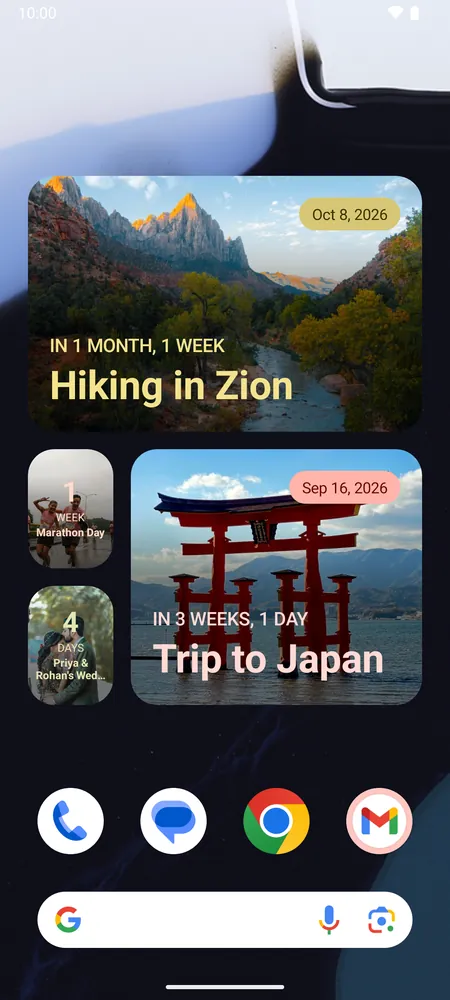
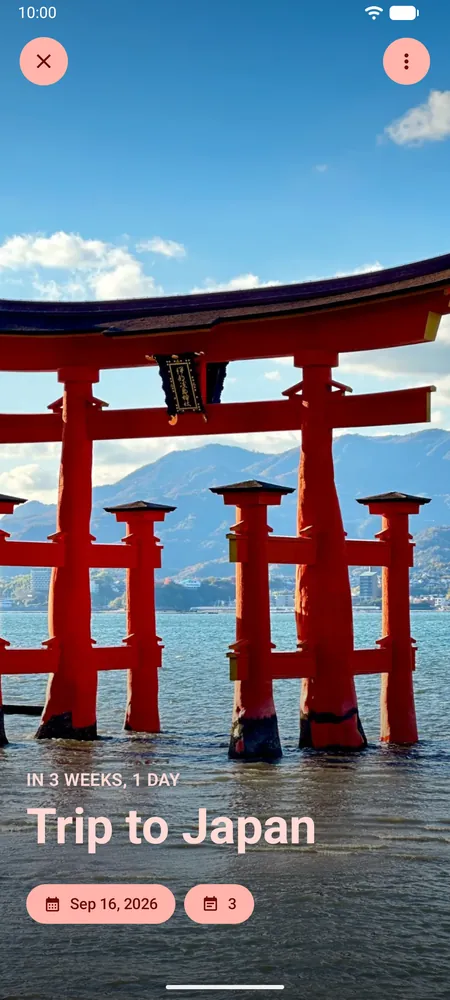
Each widget counts down to one event, so add one widget per event. The free version holds up to 3 countdowns; Premium removes the limit.
Put the countdown on your wallpaper
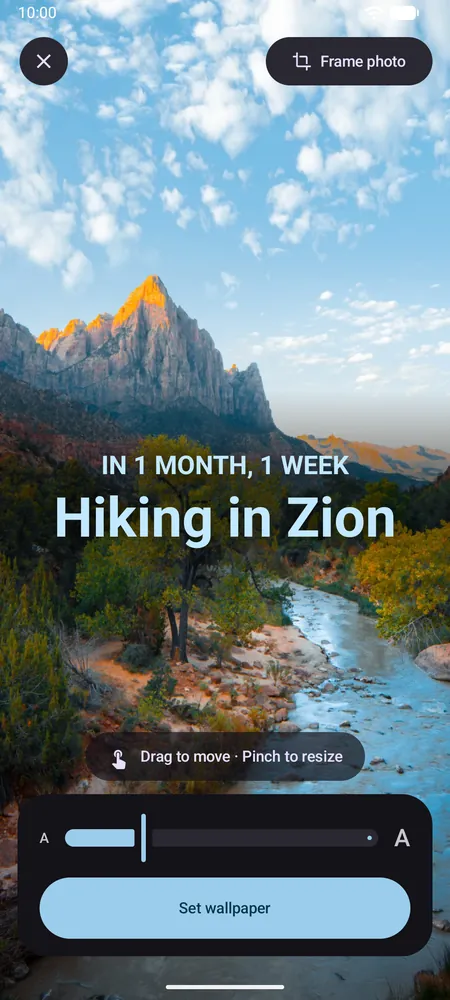
Countdown can also set an event as a live wallpaper: your photo, the event name and the countdown. You can move and resize the text and frame the photo. Live wallpaper is a Premium feature.
How it reaches the lock screen depends on your Android version. On Android 14 and newer, Android's own wallpaper preview lets you choose the home screen, or the home and lock screens. On Android 7 to 13, the lock screen shows a still image of the wallpaper that the app refreshes once a day, while the home screen counts down live.
Which option should you use?
- The event is in your Samsung calendar and a simple count is enough: Samsung Calendar's Countdown widget.
- Your phone has no countdown widget, or you want checklists, shareable images or several countdowns: a countdown app with a widget.
- You want to see it every time you unlock your phone: a countdown live wallpaper.
For more ideas, such as reminders before the day and packing lists, see how to count down to a birthday, wedding or trip.
Frequently asked questions
Does Google Calendar have a countdown widget?
No. Google Calendar's widgets show your schedule and the month view. On a Pixel or another phone without Samsung Calendar, use a countdown app.
Is the Countdown widget free?
Yes. The home screen widget, photo backgrounds and up to 3 countdowns are free, with ads. Premium adds unlimited countdowns, live wallpaper, custom fonts and colors, and working-days countdowns, and removes the ads.
Can one widget show several countdowns?
No, each widget shows one event. Add a widget for each event, and use the small 1×1 size to fit several on one screen.
Does the widget update by itself after a birthday?
Yes, if the event repeats. All-day events move to the next date once the day ends, and timed events once they're over.